

What actually makes a Shopify store fast
To speed up a Shopify store, measure real-user Core Web Vitals first, then fix the few things that cause most slowdowns: app and third-party scripts, a hero or product image that loads late, layout shifts from images and widgets, and theme code that does too much work. Shopify already handles hosting, the CDN, compression, and modern image formats, so most of the gains come from what you add on top of the platform, not from the platform itself. The goal is a good rating for Largest Contentful Paint (LCP), Interaction to Next Paint (INP), and Cumulative Layout Shift (CLS) on mobile, not a perfect lab score.
The steps below are the order we work in on client stores at PROSeCommerce, a San Diego Shopify and Magento agency that’s part of PROS Global. Most can be done by a store owner; a few need a developer comfortable with Liquid and JavaScript.
Core Web Vitals targets for Shopify stores
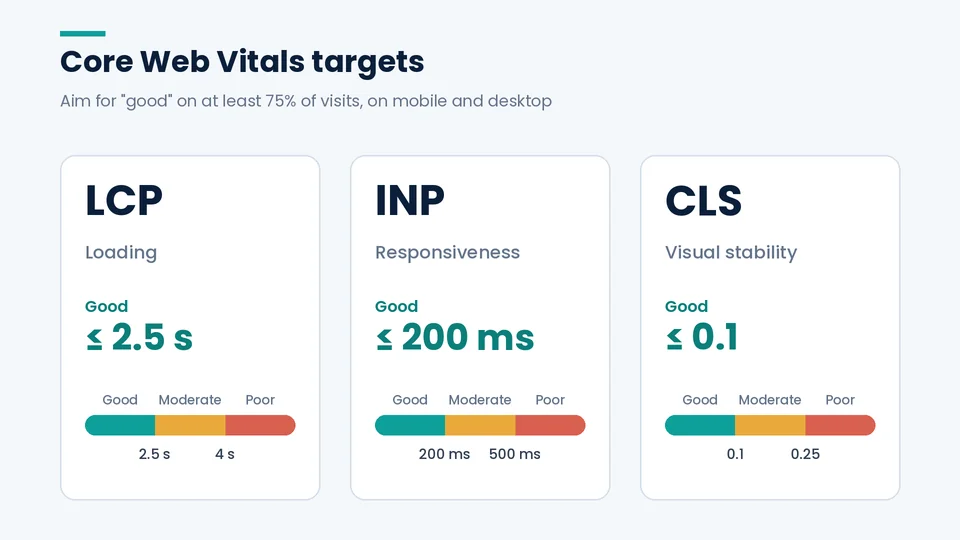
Core Web Vitals are Google’s three user-experience metrics for loading, responsiveness, and visual stability. Google’s web.dev guidance on Web Vitals says a page should meet each target for at least 75% of visits, measured separately on mobile and desktop. These thresholds are current as of October 2026, and Google says stable Core Web Vitals change no more than once a year, with advance notice. Shopify’s web performance report uses the same thresholds:
| Metric | What it measures | Good | Needs improvement (Shopify: Moderate) | Poor |
|---|---|---|---|---|
| Largest Contentful Paint (LCP) | How fast the main content, usually a hero or product image, appears | 2.5 s or less | Over 2.5 s up to 4 s | Over 4 s |
| Interaction to Next Paint (INP) | How quickly the page responds visibly after a tap or click | 200 ms or less | Over 200 ms up to 500 ms | Over 500 ms |
| Cumulative Layout Shift (CLS) | How much content jumps around while loading | 0.1 or less | Over 0.1 up to 0.25 | 0.25 or more |
INP replaced First Input Delay as a Core Web Vital in 2024. If an older guide tells you to optimize for FID, it’s out of date.
Lab scores vs. real-user data
Lab data comes from a simulated test such as Lighthouse, run on one device and connection. Field data is what real shoppers experience, collected from Chrome users and from Shopify’s own web performance reports. Google and Shopify both judge Core Web Vitals on field data at the 75th percentile, so a low Lighthouse score alone isn’t a problem.
Two kinds of measurement tell you different things, and mixing them up wastes a lot of time.
Field data comes from real shoppers on real devices. It’s what counts. You’ll find it in three places:
- Shopify’s web performance reports. In your admin, the Online Store page shows a summary of LCP, INP, and CLS from the past 30 days of real visits, rated Good, Moderate, or Poor. The full reports under Analytics > Reports break results down by page type, page URL, and device, and annotate the chart when you install apps or change themes. Shopify notes the data can lag by up to 36 hours, only covers the last 90 days, and won’t populate while your store is in private mode.
- PageSpeed Insights, which shows Chrome User Experience Report data at the top when your site has enough traffic.
- Google Search Console’s Core Web Vitals report, which groups similar URLs.
Lab data comes from a simulated test, such as Lighthouse or the score at the bottom of PageSpeed Insights. It’s useful for debugging and for checking a change before you publish it. It can’t measure INP at all, because no one is clicking; Total Blocking Time is the lab stand-in.
A Lighthouse score of 45 on a store whose field data is all green is not an emergency. A Lighthouse score of 90 on a store with poor field INP is.
What Shopify already handles for you
It’s worth knowing what’s out of your hands so you don’t pay to “fix” it. According to Shopify’s developer documentation, every storefront gets:
- A global CDN backed by Cloudflare, with HTTP/3 and TLS 1.3.
- Brotli and gzip compression.
- Streamed HTML responses and Early Hints for render-blocking resources.
- Automatic image format selection: when images are served through Shopify’s
image_urlfilter, Shopify detects what the browser supports, such as WebP or AVIF, and picks a format for quality and file size.
Hosting speed is not something an app can improve. Be wary of “speed booster” apps that promise instant 90+ scores. Shopify’s developer docs specifically warn about apps that game Lighthouse and PageSpeed tests, for example by serving different pages to testing tools, without making the store faster for shoppers.
Step-by-step: how to speed up your Shopify store
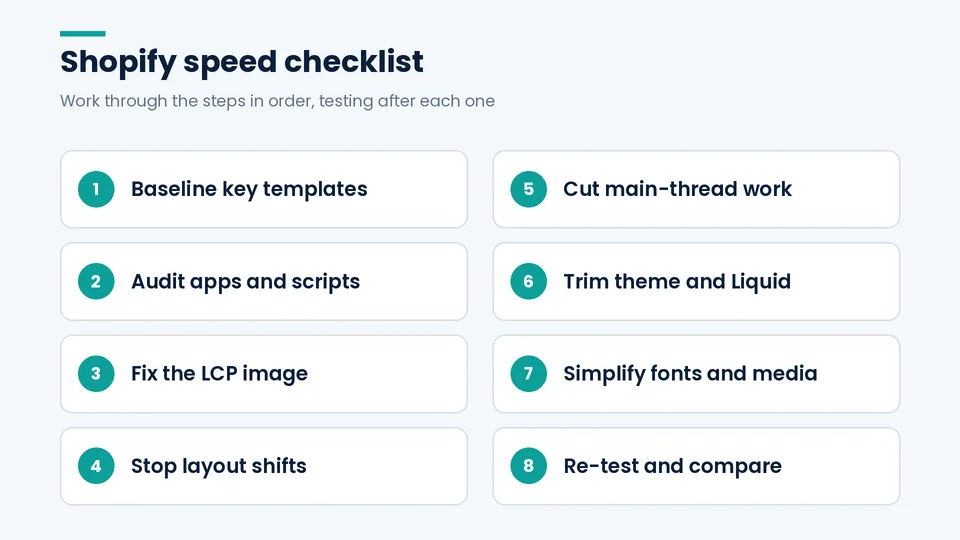
Step 1: Get a baseline for your key templates
Open the web performance reports and note LCP, INP, and CLS on mobile for your home page, a top collection page, and a top product page. Those three templates usually carry most of your traffic and revenue. Run PageSpeed Insights on the same three URLs and save the results. Every change after this gets compared against the baseline.
Step 2: Audit apps and third-party scripts
On most stores we review, this is where the biggest wins are. Shopify’s own performance guidance calls auditing and removing unused apps, tracking pixels, and third-party scripts the highest-impact optimization, and notes that uninstalling an app doesn’t always remove its code from the theme (Shopify.dev).
- List every installed app and what it does on the storefront. Remove apps you don’t use.
- Duplicate your live theme. In the duplicate, open the theme editor and switch off app embeds one at a time, re-testing the same pages after each change.
- Check your theme code for leftover snippets from apps you’ve uninstalled. Older apps sometimes edited theme files directly.
- Review your tag manager and tracking pixels. Remove duplicate or unused tags.
- For apps you keep, place app blocks only on the templates that need them.
When you choose a new app, the “Built for Shopify” badge is a reasonable filter. Shopify’s requirements for that badge say the app must not reduce a storefront’s Lighthouse performance score by more than ten points and should use theme app extensions rather than editing theme files.
Step 3: Fix the LCP image
On most product and home pages, the LCP element is an image. Shopify’s theme performance guidance lists these as the highest-impact fixes:
- Never lazy-load the LCP image. Use
loading="lazy"only for images below the first screen. - Add
fetchpriority="high"to the hero or main product image so the browser fetches it first. - Don’t hide it behind a fade-in or reveal animation, which delays LCP even after the image has downloaded.
- Use a real
<img>tag, not a CSS background image, so the browser can find it early. - Serve sized images with
srcsetandsizesthrough Shopify’simage_tagandimage_urlfilters, and use a<picture>element when mobile and desktop heroes are different images. - Keep pop-ups smaller than the main content or delay them, so a newsletter dialog doesn’t become the LCP element.
Auto-rotating hero sliders and autoplay hero videos are common LCP problems. A single strong image usually loads faster and is easier to read on a phone.
Step 4: Stop the page from jumping
CLS problems are usually easy to spot once you know the causes:
- Images without
widthandheight. Shopify’simage_tagfilter adds them automatically. - App widgets, such as reviews, badges, or upsell blocks, that load late and push content down. Reserve space for them with a minimum height.
- Announcement bars and banners injected at the top of the page after load.
- Web fonts that swap in with different spacing. Shopify recommends adjusting fallback font metrics with
size-adjustor using system fonts.
Step 5: Reduce main-thread work to improve INP
INP measures how long it takes the page to respond after a shopper taps something: a variant swatch, Add to cart, the menu, a filter. Poor INP almost always comes from too much JavaScript. Fixes from Shopify’s INP guidance include:
- Use
deferon non-critical scripts, and load features like chat, reviews, and social feeds when they scroll into view or are opened. - Load code for components such as quick-view or size guides only when someone uses them.
- Animate cart drawers and menus with
transformandopacityrather than width, height, or position. - Build the HTML for filter panels and cart drawers only when they’re first opened, rather than shipping thousands of hidden elements on every page.
- Merge duplicate desktop and mobile menus into one responsive menu.
- Remove A/B testing anti-flicker snippets when no test is running.
To find the slow interaction, filter Shopify’s INP report by page type and mobile, then record that interaction in Chrome DevTools’ Performance panel and look for long tasks.
Step 6: Trim theme and Liquid overhead
If server response time is slow, the problem is usually Liquid, the code Shopify renders before sending the page. Shopify’s docs call out deeply nested loops (for example, looping through products, then variants, then options), loading every variant when only one is shown, and reading metafields inside loops. The Shopify Theme Inspector for Chrome shows which Liquid lines take the longest, and Theme Check flags common performance problems before you publish.
Older or heavily customized themes collect these issues over time. Sometimes moving to a current, well-built theme is cheaper than fixing years of patches. Make that call after the audit, not before.
Step 7: Simplify fonts and media
- Use system fonts or self-host web fonts on Shopify’s CDN instead of loading them from an outside service.
- Limit font families and weights to what the design actually uses.
- Replace embedded YouTube or Instagram widgets near the top of the page with a static image that loads the embed on click.
Step 8: Re-test and compare
Publish changes one group at a time and check the same templates against your baseline. Field data needs time to catch up, so judge results over the following weeks, not the same afternoon.
Common Shopify speed mistakes
The most common Shopify speed mistakes come from optimizing the wrong thing: chasing a perfect Lighthouse score, lazy-loading the hero image, adding a speed app to cover for other apps, and testing only on desktop. Each one uses up time without improving what Google and Shopify actually measure, which is real-user Core Web Vitals on mobile.
- Chasing a lab score of 100. It’s rarely worth the cost. Aim for good field Core Web Vitals.
- Lazy-loading everything, including the hero image.
- Installing a speed app to fix problems caused by other apps. Remove the cause instead.
- Testing only on desktop. Shopify’s docs note that mobile carries most storefront traffic and has the toughest conditions.
- Changing the live theme directly. Test on a duplicate first.
- Ignoring checkout and post-purchase scripts. On Plus, checkout UI extensions can affect checkout speed too, and they’re worth auditing.
Keeping your store fast after the fix
To keep a Shopify store fast, treat every new app, script, and homepage section as a performance change: test it on a duplicate theme, compare field data against your baseline, and roll back anything that pushes mobile LCP past 2.5 seconds or INP past 200 milliseconds. Then check the web performance report at least once a month.
Speed slips back as the store changes. A few habits keep it in check:
- Review the web performance report after every app install or theme update; the chart annotations make it easy to see what moved.
- Run a quarterly app audit.
- Set a simple performance budget for key templates, such as “LCP under 2.5 seconds on mobile,” and check new features against it.
- Ask app vendors how their app loads before you install it.
When to bring in a developer
When the PROSeCommerce team takes on a speed project, we get a baseline and audit apps (steps 1 and 2) before anyone touches theme code, because removing a script is usually cheaper than optimizing around it.
You can do steps 1, 2, and much of 4 and 7 without code. Steps 3, 5, and 6 usually need someone comfortable editing Liquid, CSS, and JavaScript, especially on a customized theme. Bring in help when field metrics stay in Moderate or Poor after the app audit, when INP is poor on product pages, or when server response time is slow across the site.
Speed work overlaps with other improvements. Our guides to improving the mobile experience on your Shopify store and building a high-converting product page on Shopify pair well with this checklist, and our guide to SEO for Shopify stores covers how page experience fits into search.
Frequently asked questions about Shopify store speed
What is a good PageSpeed score for a Shopify store?
There isn’t one magic number. Focus on the field data at the top of PageSpeed Insights or in Shopify’s web performance report: LCP at or under 2.5 seconds, INP at or under 200 milliseconds, and CLS at or under 0.1. For reference, Shopify requires an average Lighthouse performance score of at least 60 for themes in its Theme Store.
Do Shopify apps slow down a store?
Many do, especially apps that load JavaScript on every page, such as chat, reviews, pop-ups, and tracking tools. Shopify’s performance guidance ranks removing render-blocking and unused app scripts among the highest-impact fixes. Test each app’s impact on a duplicate theme.
Does Shopify optimize images automatically?
Partly. When themes use Shopify’s image filters, the CDN picks a modern format such as WebP or AVIF based on the browser, and the image_tag filter can generate responsive sizes and dimensions. You still need to avoid lazy-loading the main image and keep sliders and oversized media in check.
Does site speed affect Shopify SEO?
It can. Shopify’s developer documentation notes that Google uses Core Web Vitals as a ranking signal. Relevance and content quality still matter more, but a slow, jumpy store also loses shoppers who arrive from search, so speed and SEO work best together.
How long does it take to see speed improvements in Shopify reports?
Shopify says web performance data can be delayed by up to 36 hours, and its summary uses the past 30 days of real-user visits. Expect the summary to move gradually over a few weeks as new visits replace old ones.
Should I switch to a new theme to make my store faster?
Only after an audit. If apps are the main cause, a new theme won’t fix them. If the theme itself has heavy JavaScript, nested Liquid loops, or years of custom patches, moving to a current, well-built theme can be the cleaner fix.
Turning speed work into a habit
A fast Shopify store isn’t a one-time project. It comes from measuring what real shoppers experience, removing what you don’t need, fixing the main image and the scripts around it, and checking every new app or feature against your baseline.
If your Core Web Vitals are stuck in Moderate or Poor, PROSeCommerce can audit your theme and apps and fix what’s slowing you down. Our Shopify speed optimization service covers the work above, and our Shopify support and maintenance team can keep performance on track after launch.