

What a WooCommerce to Shopify migration actually involves
To migrate from WooCommerce to Shopify, set up your Shopify store first. Next, export products from WooCommerce and remap the CSV to Shopify’s template (or use a migration app), then bring over customers, order history, and reviews with apps built for that. After that, rebuild the storefront, configure shipping, taxes, and payments, and load a 301 redirect for every old URL before you point the domain. Most problems after a migration come from three things: product options that didn’t map cleanly, missing redirects, and checkout or tracking that nobody tested.
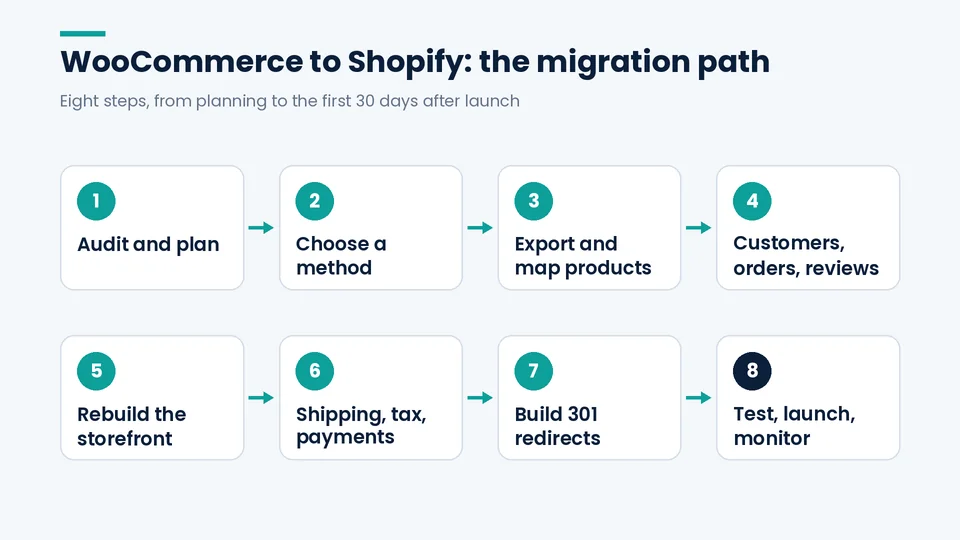
This guide is the hands-on part, written by the team at PROSeCommerce, a San Diego Shopify and Magento agency that’s part of PROS Global. If you’re still deciding, start with our take on whether now is the right time to leave WooCommerce and come back when you’re ready to plan.
Key terms
- WooCommerce: A free, open-source ecommerce plugin for WordPress. You (or your host) run the server, WordPress core, plugins, and security updates.
- Shopify: A hosted commerce platform with a monthly subscription. Shopify runs the hosting, checkout, and core security. Extra features come from themes and apps.
- Product CSV: The spreadsheet format Shopify uses for bulk product imports. WooCommerce exports a CSV too, but its columns don’t match Shopify’s.
- Handle: The URL-friendly name of a Shopify product or collection, as in
/products/blue-linen-shirt. - 301 redirect: A permanent redirect from an old URL to a new one. Google says permanent redirects don’t cause a loss in PageRank (Google Search Central).
Before you start: the pre-migration checklist
When the PROSeCommerce team plans a WooCommerce migration, we start with this list, before anyone picks a theme or installs an app. The surprises that show up later in a project usually trace back to something that never made it onto this inventory, so it pays to be thorough here.
Do this on the live WooCommerce site before anyone opens Shopify:
- Take a full backup of the WordPress database and
wp-contentfolder, and keep it somewhere you can restore from. - Crawl the site with a tool like Screaming Frog and save every URL with its status code, title, meta description, and H1.
- Export your top landing pages by organic clicks from Google Search Console, plus revenue by landing page from analytics. These are your “must not break” URLs.
- List every active plugin and write one line on what it does: subscriptions, product add-ons, reviews, loyalty, wholesale pricing, shipping rules, tax, email capture.
- Count products, variations, customers, and orders. You’ll use these numbers to check the import later.
- Decide what you’re leaving behind. Discontinued products, dead pages, and test orders don’t need to come along.
If you’re still comparing plans, this breakdown of Shopify plans helps you match features to the plugin list you just made.
Step 1: Pick a migration method
The right WooCommerce to Shopify migration method depends on what you need to move. Shopify’s CSV import or its Store Migration app can handle a standard product catalog, while order history, reviews, and large catalogs usually need a third-party migration app. Stores with subscriptions, custom plugins, or a large SEO footprint usually justify hiring a Shopify Partner.
Shopify’s Help Center lists five ways to move WooCommerce data: manual copy and paste, Shopify’s Store Migration app, CSV import, third-party migration apps, or hiring a Shopify Partner (Shopify Help Center). Most stores end up combining them.
| Method | Good for | Watch out for |
|---|---|---|
| Manual copy/paste | A few pages: About, policies, FAQ | Slow, and only practical for content, not catalog data |
| Store Migration app (Shopify) | Products from a standard WooCommerce export | Listed as early access, desktop only, and not available to every store. Orders, reviews, and navigation need other tools (Shopify Help Center; Shopify blog) |
| Shopify CSV import | Products and customers when you’re comfortable in a spreadsheet | You remap the columns yourself, and customer CSVs get no mapping help |
| Third-party migration app | Order history, reviews, larger catalogs, redirects | Usually priced by record count. Check what each one migrates before you pay |
| Shopify Partner or agency | Custom plugins, wholesale pricing, subscriptions, or a large SEO footprint | Agree up front on scope, redirect ownership, and QA sign-off |
Preview tip: When you sign up and pick WooCommerce as your current platform, Shopify can generate a starting theme from your existing store URL. It’s built on the Dawn theme with templates similar to your current storefront (Shopify Help Center). That gives you a quick look at your products in Shopify, though it doesn’t replace a real theme decision.
Step 2: Export and map your products
In WooCommerce, go to Products > All Products > Export, choose your columns and categories (including custom meta if you need it), and click Generate CSV.
If you use Shopify’s product CSV importer rather than the Store Migration app, the columns have to be renamed and some values reshaped. Shopify’s documented mapping (Shopify Help Center):
| WooCommerce column | Shopify column | Note |
|---|---|---|
| Name | Title | Rename |
| Description | Body (HTML) | Rename |
| Attribute 1 name / value(s) | Option1 Name / Option1 Value | One option value per row, so a shirt in four sizes becomes four rows |
| Attribute 2 name / value(s) | Option2 Name / Option2 Value | Same rule |
| SKU | Variant SKU | Rename |
| Weight (lbs) | Variant Grams | Multiply pounds by 453.6 |
| Stock | Variant Inventory Qty | Single-location stores only. Multi-location stores use the inventory CSV |
| Regular price | Variant Price | Rename |
| Images | Image Src | Rename |
The three-option limit. Shopify allows three product options (for example size, color, and material). If a WooCommerce variable product uses four or more attributes, the extra options won’t import (Shopify Help Center). Decide before the import whether to split the product, use metafields, or add an options app.
Keep your slugs. Set each Shopify handle to the old WooCommerce product slug. If /product/blue-linen-shirt/ becomes /products/blue-linen-shirt, your redirects follow one simple rule and are much easier to check.
Import carefully. In Shopify, go to Products > Import, upload the file, and deselect “Publish new products to all sales channels” so nothing goes live by accident. Then check the result: open your top 20 revenue products, a few variable products, and one product from each category. Compare price, weight, inventory, images, and variant images against the old store.
When your product pages are in place, this is a good moment to tighten your template. Our guide to building a high-converting Shopify product page covers what’s worth adding.
Step 3: Customers, orders, and reviews
Customers. WooCommerce doesn’t export customers natively. Shopify’s guide uses an import/export plugin. The export then has to be rebuilt to match Shopify’s customer CSV headers exactly, because Shopify offers no column mapping for customer imports (Shopify Help Center). Pay attention to state and country fields, which need ISO codes.
Passwords don’t come with them. Customers need to activate their Shopify accounts, so write that email before launch day. Some migration apps can generate customer activation links for you (for example, Ablestar’s WooCommerce Importer listing mentions this).
Order history. Shopify’s product and customer importers don’t handle past orders. The Help Center points to third-party apps for this, naming LitExtension, Store Migration, Matrixify, and Ablestar WooCommerce Importer (Shopify Help Center). Decide how many years you actually need. Support, warranty claims, and repeat-purchase segmentation are the usual reasons to keep them.
Reviews. Shopify says WooCommerce reviews can’t be exported or migrated natively and suggests importing them through a reviews app such as Judge.me, Loox, or Yotpo (Shopify Help Center). Pick the reviews app first, then check its import format.
Import order: products, then customers, then orders. Orders reference both.
Step 3b: SEO metadata, blog posts, and subscriptions
These three get missed most often.
SEO titles and meta descriptions. On WooCommerce these usually live in an SEO plugin such as Yoast or Rank Math, not in the product record itself. Some import routes ignore that plugin data, and Shopify then falls back to the product name as the title. Export your current titles and descriptions from the crawl you saved, and load them into Shopify’s SEO fields for every product, collection, and page that earns organic traffic. A ranking page that loses its tested title tag can slip even when the redirect is perfect.
Blog posts. WordPress blogs often carry a large share of a store’s organic traffic, and they don’t move with the catalog. Migrate posts into a Shopify blog (or decide deliberately to keep WordPress elsewhere), then redirect each post URL. Search post bodies for links to old /product/ and /product-category/ URLs and update them to the new paths. Redirects will catch them, but direct internal links are cleaner.
Subscriptions. WooCommerce Subscriptions data doesn’t import into Shopify’s native tools. You’ll need a Shopify subscription app, a plan for moving active subscribers, and careful coordination of billing dates so nobody is double-charged or skipped. Whether saved payment methods can move depends on your payment processor and app. Shopify’s Admin API can import saved payment methods held at Stripe, Authorize.Net, or Braintree (Shopify.dev), so check where your WooCommerce cards are stored and what your subscription app supports before you promise customers a seamless switch. If recurring revenue is significant, treat this as its own workstream.
Step 4: Rebuild the storefront
Plugins don’t transfer. Go back to the plugin list from your pre-migration checklist and sort each item into one of three buckets: Shopify does it natively, an app does it, or you can stop doing it. Most stores find a few plugins in that third bucket.
Then build navigation, collections (Shopify’s version of categories), and content pages. Shopify’s own SEO team recommends choosing a theme close to your current layout and holding back on extra changes during the move. Rewriting title tags or reshuffling internal links at the same time makes it hard to tell what caused a ranking shift (Shopify blog). Save the redesign for after you’re stable.
Step 5: Shipping, taxes, and payments
- Shipping: Add every location you ship from, create shipping zones, and enter package dimensions if you use carrier-calculated rates. Many carriers price on volumetric weight (Shopify Help Center).
- Taxes: Re-create your US sales tax setup and check it against the states where you collect. Software calculates tax. It doesn’t decide where you owe it, so confirm nexus with your accountant.
- Payments: Set up your payment provider and turn on the methods your customers used on WooCommerce (cards, PayPal, buy-now-pay-later) so the checkout feels familiar.
Step 6: Build the 301 redirect map
A 301 redirect map is a spreadsheet that pairs every old WooCommerce URL with exactly one new Shopify URL, so shoppers and search engines land on the right page after launch. It should cover every URL with organic traffic, backlinks, or revenue, not only products, and it should be loaded and spot-checked before the domain points to Shopify.
This step protects your organic traffic. WooCommerce and Shopify use different URL patterns, so almost every product and category URL changes.
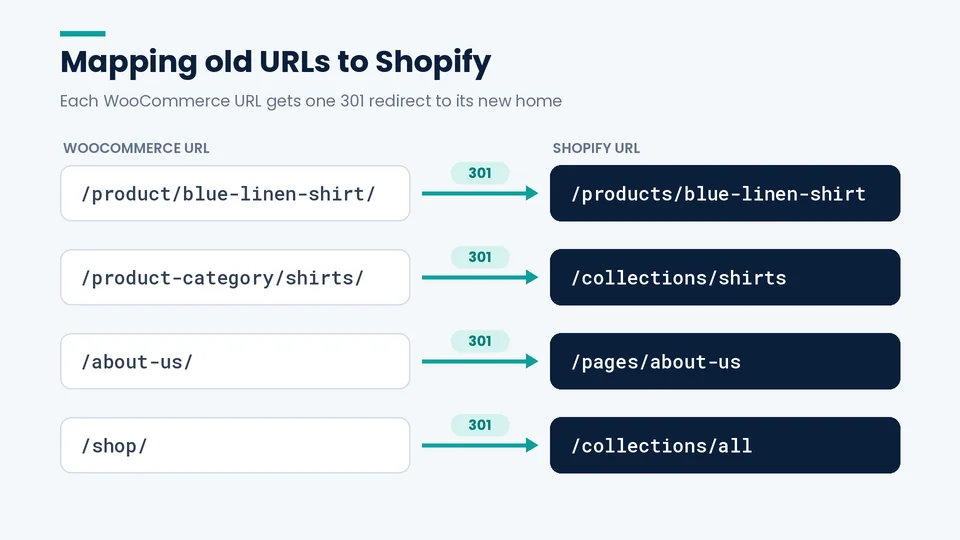
| WooCommerce URL (default pattern) | Shopify URL | Rule |
|---|---|---|
| /product/blue-linen-shirt/ | /products/blue-linen-shirt | Product slug to handle |
| /product-category/shirts/ | /collections/shirts | Category to collection (WooCommerce permalinks) |
| /product-tag/linen/ | Closest collection, or let it 404 if it never had traffic | Tag archives rarely deserve their own page |
| /about-us/ | /pages/about-us | Page |
| /2024/05/how-to-wash-linen/ or /how-to-wash-linen/ | /blogs/news/how-to-wash-linen | Blog post |
| /shop/ | /collections/all | Shop page |
How to load and check it:
- Put every old URL from your crawl and Search Console export into a spreadsheet, each with exactly one destination.
- Import the file in Shopify under Content > Menus > View URL redirects. As of October 2026, standard plans allow up to 100,000 redirects, and Plus allows 20,000,000 (Shopify Help Center).
- Know how Shopify redirects behave: a redirect only fires when the old path would otherwise show a 404, and you can’t redirect from Shopify’s fixed paths like
/productsor/collections(Shopify Help Center). - Follow Google’s guidance: send each old URL straight to its final destination with no chains, don’t dump large groups of URLs on the homepage, and keep redirects for at least a year (Google Search Central). Shopify’s SEO lead recommends keeping them indefinitely (Shopify blog).
Step 7: Test before launch
- Place test orders with different payment methods, a discount code, and every shipping option, then refund one.
- Check order confirmation, shipping, and refund emails.
- Confirm analytics purchase events, Google Ads and Meta conversions, and your Merchant Center feed.
- Test email signup forms and abandoned-cart flows in your email platform.
- Look over the store on a real phone, not only a resized desktop browser.
- Run the full old-URL list through your crawler in list mode against the Shopify preview, as far as your setup allows.
Step 8: Launch day and the first 30 days
Launch day: freeze edits on WooCommerce, run a final import of any orders and customers created since your test run, remove the Shopify storefront password, connect your domain, and confirm SSL. Then re-crawl the old URL list against the live domain. (Your domain can stay with its current registrar. Just confirm MX and TXT email records survive the DNS change.) Submit the Shopify sitemap in Search Console and send the account activation email.
The next 30 days: Shopify’s SEO team expects some impact whenever URLs change and says traffic typically recovers within a few weeks for small sites and over months for large ones (Shopify blog). Check Search Console for “Not found” spikes every day for the first couple of weeks, add any missing redirects the same day, and compare organic revenue by landing page against your baseline. Once things settle, our complete guide to SEO for Shopify stores covers what to improve next.
Keep the WooCommerce database and media backup for reference. Don’t let the old site stay publicly reachable on another domain, or you’ll end up with duplicate content.
FAQ
Can I migrate WooCommerce orders to Shopify for free?
Not with Shopify’s built-in importers. The product and customer CSV imports don’t handle order history, and Shopify’s Help Center points to third-party apps for orders. Most of those charge based on record volume.
Will my customers need to reset their passwords?
Yes. Passwords don’t transfer from WordPress to Shopify. Customers activate their new accounts through an invitation or reset email. Write it ahead of time and send it at launch.
What happens to WooCommerce products with more than three attributes?
Shopify allows three options per product, and anything beyond that won’t import. You can split the product, store the extra detail in metafields, or use a product options app.
Will I lose Google rankings if I move from WooCommerce to Shopify?
Expect some movement while Google recrawls. Google states that 301 redirects don’t lose PageRank, so lasting losses usually come from missing or wrong redirects, changed titles and content, or a leftover noindex setting.
How long does a WooCommerce to Shopify migration take, and what does it cost?
It depends far more on plugins, custom features, subscriptions, and SEO footprint than on product count. A simple catalog with few plugins can move quickly with CSVs and an app. Stores with subscriptions, wholesale pricing, a big blog, or custom PHP take longer and usually justify a partner. As general industry planning ranges, not quotes or guarantees: a small store with a simple catalog and few plugins often takes 2 to 4 weeks, a mid-size store with subscriptions, B2B pricing, or custom features takes 6 to 10 weeks, and a large or heavily customized store takes 3 months or more. Cost follows the same drivers, so scope your store before you compare estimates.
Conclusion
A WooCommerce to Shopify migration is mostly careful bookkeeping. Know what you have, map it field by field and URL by URL, test with real orders, and launch with your redirects already in place. Doing it in that order puts the risk in the spreadsheet, where mistakes are cheap to fix.
If you’d like help with any part of it, from CSV mapping to the redirect map, PROSeCommerce works on Shopify migrations for stores coming from WooCommerce and Magento. We’re happy to look at your setup and tell you what’s straightforward and what isn’t.