
What upselling on Shopify actually means
Upselling on Shopify means offering a shopper a higher-value version of what they already want, such as a larger size, a premium model, or a multipack. Cross-selling offers a complementary add-on, like a case with a phone. Both aim to raise average order value, and Shopify supports them natively through product recommendations, bundles, discounts, and checkout apps.
The old version of this post promised that upselling was “a surefire way” to boost sales and then drifted into theme advice. In practice, upsells work when the offer is relevant, priced sensibly, and shown at a moment when it helps the shopper rather than interrupts them. This guide covers the native Shopify tools, the plan limits that decide where offers can appear, and how to measure whether they help. Facts come from the Shopify Help Center and Shopify developer documentation, checked as of October 2026. PROSeCommerce, part of PROS Global in San Diego, builds and optimizes Shopify and Shopify Plus stores for US brands, and the advice below reflects how we set up offers for clients: native tools first, apps only where they add something the platform cannot do.
Upsell, cross-sell, and bundle compared
| Tactic | Example | Typical placement on Shopify | Native tool |
|---|---|---|---|
| Upsell | 16 oz instead of 8 oz, pro model instead of standard | Product page variants, related products | Variants, Search & Discovery related products |
| Cross-sell | Filters with a water pitcher, a belt with trousers | Product page, cart, checkout order summary | Search & Discovery complementary products, checkout apps |
| Bundle | Starter kit, three-pack at a set price | Its own product page, collection pages | Shopify Bundles app |
| Volume or threshold offer | Buy two get one, free shipping over a set amount | Cart and product messaging | Buy X get Y and free shipping discounts |
| Post-purchase offer | One-click add-on after payment | Page between payment and thank you page | Post-purchase checkout extension (apps) |
Most stores only need two or three of these. Choose based on what customers already buy together, not on what an app demo looks good doing.
Start with the orders you already have
Before you configure anything, find the natural pairings in your own data. Shopify’s behavior reports are designed partly for this, and Shopify describes them as a way to upsell to your best audience and plan product bundles. Export recent orders and look for:
- Products that appear together in multi-item orders.
- Accessories or refills bought within a few weeks of a main product.
- Variants that customers upgrade to on their second order.
- Products with high margin and steady inventory, which make safer add-ons than low-stock items.
That short list becomes your first recommendation map. It also stops the common mistake of recommending best sellers everywhere, which raises clicks but not order value.
Product page recommendations with Search & Discovery
The free Shopify Search & Discovery app controls the two recommendation types most themes support. As of October 2026, the product recommendations documentation describes them this way:
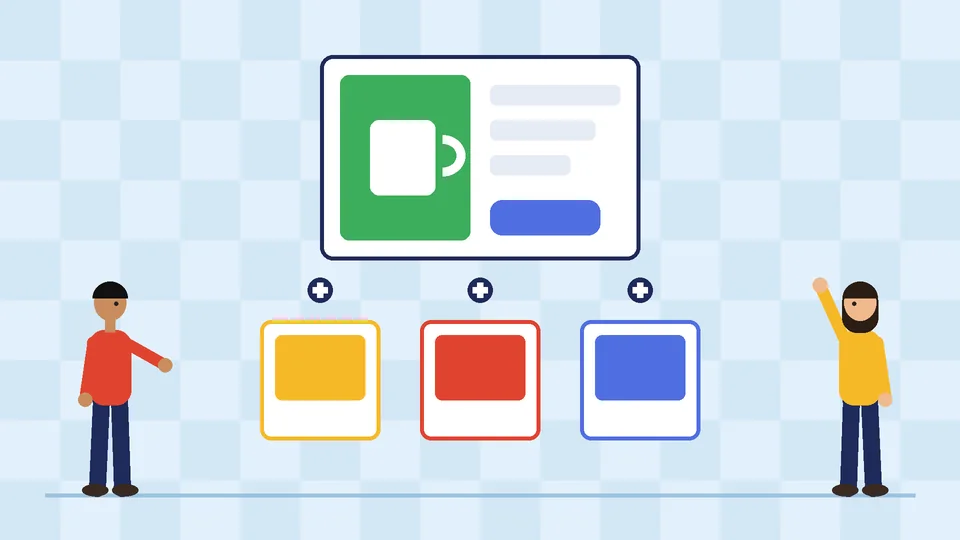
- Complementary products are items often bought in addition to the product being viewed. You can pick up to 10 per product, and they need inventory above zero to display.
- Related products are alternatives or similar items. You can pick up to 10 and choose whether to show only your picks or your picks ahead of Shopify’s automatic suggestions.
Shopify generates related recommendations automatically from purchase history, product descriptions (English storefronts only), and related collections. A recommended product only shows if it is active, published to the Online Store, priced above $0, not a gift card, not sold out, and not already in the visitor’s cart. Your theme also needs a complementary products block and a product recommendations section on the product template. Recommendations sit best on a product page that already answers the core buying questions; our guide to building a high-converting product page on Shopify covers that groundwork.
Shopify’s own best practice for complementary picks is to choose good add-ons that cost the same as or less than the original product. That matches what tends to work in practice: a $14 accessory beside a $60 item feels like help, while a $90 accessory beside it feels like a second decision.
For large catalogs, you can bulk edit recommendations through standard metafields, and Shopify Flow can update those metafields when products change.
Bundles and multipacks
A bundle is a set of two or more related products, often sold at a discount. Shopify Bundles is a free first-party app available on all plans, and it creates fixed bundles and multipacks from your Shopify admin. Bundles can sell on the Online Store, Shop, Shopify POS, and headless storefronts.
Know the limits before you build a bundle-heavy catalog:
- Fixed bundles can include up to 30 components, with a maximum of 3 options and 100 variants per bundle.
- Bundle inventory is tracked as overall stock, not by location.
- When a component’s price changes, the bundle price does not update automatically. Someone has to change it.
- Orders list SKUs for the individual items, which helps the warehouse but changes how bundle sales appear in some reports.
Bundles work best for starter kits, gift sets, and refills where customers would otherwise assemble the set themselves. They work badly when the discount trains customers to wait for a bundle before buying anything.
Cart and checkout offers
Cart offers usually come from your theme’s cart drawer or an app. Keep them to one or two relevant items, priced lower than the main product, and avoid pop-ups that block the checkout button.
Checkout is more controlled. Shopify’s checkout and accounts editor lets you add apps to checkout pages, including item upsell apps placed in the order summary. Where those apps can appear depends on your Shopify plan:
| Where an upsell app can appear | Basic plan or higher | Shopify Plus |
|---|---|---|
| Thank you and order status pages | Yes | Yes |
| Information, shipping, and payment steps | No | Yes |
| Checkout Branding API for deeper styling | No | Yes |
Shopify’s developer documentation confirms that pre-purchase offers built as checkout UI extensions on the information, shipping, and payment steps are a Plus-only capability, as of October 2026. On other plans, the realistic places for an upsell are the product page, the cart, and the thank you page. If in-checkout offers are central to your plan, read our guide to Shopify Plus for small businesses before upgrading for that alone.
Post-purchase upsells: check the rules first
A post-purchase offer appears after payment is confirmed and before the thank you page, so the shopper can add an item with one click. It is a strong placement because the main sale is already safe. It also has more conditions than most app listings mention.
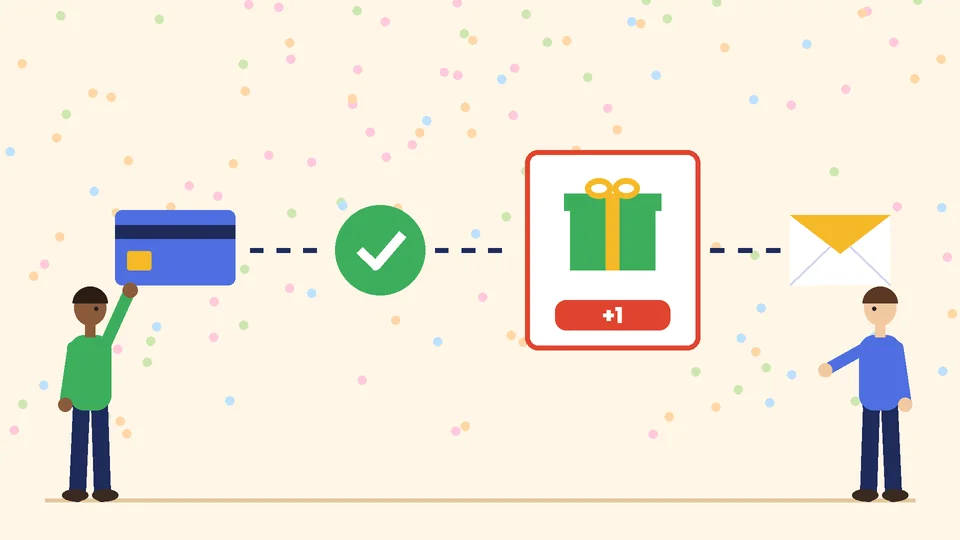
As of October 2026, Shopify’s developer documentation lists these points for post-purchase checkout extensions:
- They are in beta. They work without restriction in development stores, but live stores need to request access through the app.
- Only one app can run the post-purchase page at a time.
- A customer can accept a maximum of three post-purchase offers per checkout.
- The page is not shown when the shopper pays with installment or wallet services such as Klarna, Affirm, Afterpay, Apple Pay, Amazon Pay, or Google Pay, or with a gift card.
- Orders must come through the Online Store channel and be at least $0.50.
- Offers are not shown on local delivery orders or on orders with duties and multiple currencies.
- Shopify places a fulfillment hold during the flow, released when the customer reaches the order status page or one hour after checkout.
- Some third-party analytics only see the initial purchase value, so reported revenue may undercount accepted offers.
That list explains why post-purchase revenue often looks smaller than expected. If a large share of your customers pay with wallets, the offer simply never appears for them.
Discounts that support upsells
Shopify’s discount types cover most offer mechanics without extra apps: amount off discounts, Buy X get Y discounts that can apply automatically, and free shipping discounts with conditions. A free shipping threshold set a little above your typical order value is one of the simplest cross-sell prompts, because it gives the shopper their own reason to add an item.
For tiered or multi-step promotions, Shopify points to discount apps, custom apps, or Checkout Blocks on Plus. Keep the logic easy to explain on the product page. If a customer cannot work out the deal in five seconds, the offer is costing you conversions.
How to choose what to offer
A good Shopify upsell is relevant to the item in the cart, priced at or below that item, in stock, and profitable after the discount. Show one clear offer per placement, explain the benefit in a few words, and let the shopper decline without friction. Relevance beats volume every time.
Practical rules we apply when mapping offers:
- One placement, one job. Product page for alternatives and add-ons, cart for small add-ons and thresholds, post-purchase for refills or extras.
- Never recommend a product that is out of stock or slow to ship.
- Avoid offers that compete with the main product, such as a cheaper model shown after the shopper chose the premium one.
- Check margins after discounts and shipping, not only the headline price.
- Retire offers that get clicks but no purchases after a fair test period.
Measuring whether upsells work
Track average order value, items per order, conversion rate, and revenue per session together. If order value rises but conversion rate falls, the offer is distracting shoppers. Shopify’s Product recommendation conversions over time report shows click rate, add-to-cart rate, and purchase rate for recommendations, and Product recommendations with low engagement lists top-selling products whose recommendations get below-average clicks. Those are the first products to re-map.
Bundles have their own metrics inside the Bundles app, including bundle total sales and bundle orders. For a wider view of how offers affect the checkout funnel, pair this with our Shopify conversion rate optimization guide.
Upsell mistakes that cost sales
- Stacking a pop-up, a cart drawer offer, and a checkout offer on the same visit.
- Recommending the store’s best sellers on every product instead of true pairings.
- Using steep discounts on add-ons that customers would have bought anyway.
- Installing two recommendation apps that both inject scripts, which slows product pages. Our guide on how to speed up your Shopify store covers app cleanup.
- Forgetting to update bundle prices after a component price change.
Frequently asked questions
What is the difference between an upsell and a cross-sell on Shopify?
Does Shopify have built-in upsell features?
Can I add upsells to Shopify checkout without Plus?
Are post-purchase upsells available on every Shopify store?
Will upsell offers hurt my conversion rate?
How many products should I recommend on a product page?
Next steps
Pull the last 90 days of orders, list the pairs that already happen naturally, and set those up as complementary products for your top sellers. Add one bundle or threshold offer where it fits, measure for a few weeks, and only then consider checkout or post-purchase apps.
If you want help mapping offers to your catalog, checking what your plan allows, or cleaning up overlapping apps, PROSeCommerce can review your Shopify store and set up upsells that raise order value without slowing the path to checkout.