

What the Shopify admin dashboard is
The Shopify admin dashboard is the browser-based back office where you run a Shopify store: orders, products, customers, reports, marketing, discounts, sales channels, apps, and settings all live there. Shopify describes the admin as “your central hub for managing your online store,” and every section is reachable from the left sidebar or the search bar.
If you are new to Shopify, the admin can feel busy for the first week. After that, most merchants use the same five or six pages every day. This guide walks through each area as it looks as of October 2026, explains what belongs where, and gives you a daily and weekly routine. It is written for US store owners and the staff they bring on, based on Shopify’s own admin overview in the Help Center and on how our team at PROSeCommerce, part of PROS Global in San Diego, sets up new stores for clients.
One note before you start: Shopify is gradually rolling out a refreshed admin design. In the refreshed layout, search, Sidekick, the Alerts feed, and the store switcher can sit in the sidebar instead of the top bar. Shopify says the change affects appearance and layout only, so the sections below still apply.
How the sidebar is organized
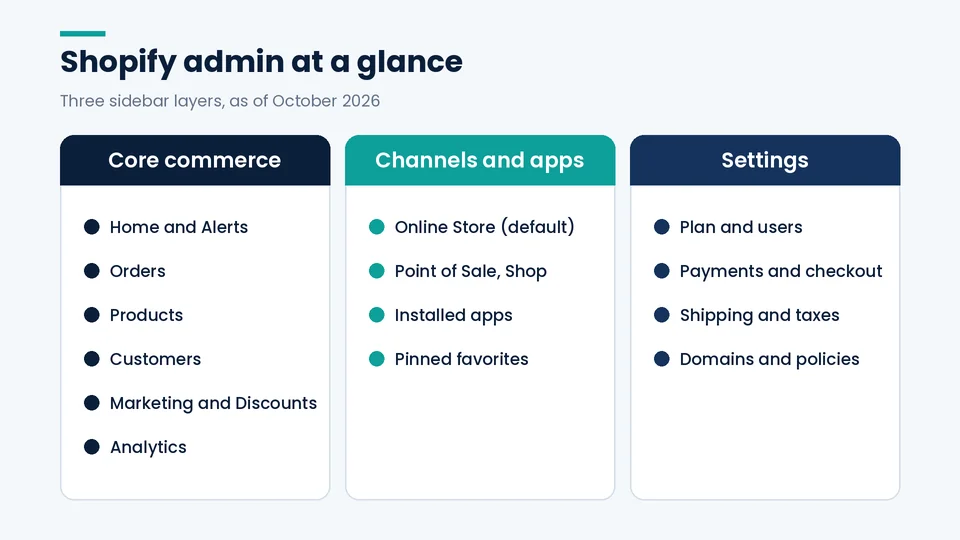
The sidebar groups the admin into three layers: core commerce pages, sales channels and apps, and Settings at the bottom. Learn those three layers and you can find almost anything in two clicks.
Core commerce pages cover the daily work of selling:
- Home. Real-time sales and traffic, task reminders, and urgent actions such as unpaid orders that still need to be captured.
- Orders. New, open, unfulfilled, and archived orders, plus drafts and abandoned checkouts.
- Products. Product records, collections, inventory, purchase orders, transfers, and gift cards.
- Customers. Customer profiles, segments, and order history for each buyer.
- Marketing. Campaigns, automations, and attribution for the channels you connect.
- Discounts. Codes and automatic discounts, with usage limits and dates.
- Content. Metaobjects, files, menus, and blog posts on most stores.
- Analytics. Dashboards, reports, and live view of current visitors.
Sales channels and apps sit below the core pages. Shopify notes that new stores begin with only the Online Store sales channel installed. Other channels, such as Point of Sale or Shop, and any apps you add appear here once installed, and you can pin the ones you use most.
Settings holds store-wide configuration: plan and billing, users and permissions, payments, checkout, shipping and delivery, taxes and duties, locations, markets, domains, notifications, and policies. Most setup mistakes we fix trace back to a Settings page that nobody opened during launch.
The Home page and Alerts feed
The Home page is a status board, not a full report. It shows today’s sales, sessions, and orders at a glance, and it surfaces tasks Shopify thinks need attention. Use it to decide what to open next, then go to Orders or Analytics for detail.
The Alerts feed is the bell-style icon in the top bar (or sidebar in the refreshed design). Shopify sends alerts for tasks that could disrupt your business, actual disruptions, product compliance notices, money movements between you and Shopify, and long-running jobs you started, such as a bulk import finishing. Alerts go to the store owner and to staff with the relevant permissions. Clear them daily so real problems do not hide behind old notices.
Orders: where most of the daily work happens
Orders is the page your team will open more than any other. Each order shows payment status, fulfillment status, the customer, items, shipping method, and a timeline of every event and comment.
A practical order routine for a small US store looks like this:
- Filter to unfulfilled and paid. These are ready to pick, pack, and ship.
- Check payment holds. Orders with pending or authorized payments may need capture before you ship. Shopify Home flags uncaptured payments, and the order page shows the exact status.
- Review risk indicators. Look at the fraud analysis on any order that seems unusual before fulfilling it.
- Fulfill and add tracking. Buy labels in Shopify Shipping or enter tracking from your carrier or 3PL so the customer gets a shipping confirmation.
- Handle returns and refunds from the order. Starting refunds from the order keeps inventory and reports accurate.
Draft orders, also under Orders, are useful for phone orders, wholesale quotes, and custom invoices. Abandoned checkouts show shoppers who entered contact details but did not finish paying, which gives you a list for recovery emails.
Products, inventory, and collections
The Products area is where your catalog lives. Each product record holds the title, description, media, pricing, inventory, shipping weight, variants, SEO title and description, and the sales channels where it is published.
Three habits keep this area clean:
- Use collections deliberately. Automated collections update from rules such as product type or tag. Manual collections suit curated pages. Collections drive navigation and category URLs, so they matter for search.
- Track inventory by location. If you ship from more than one warehouse or sell in a store, set quantities per location in Inventory. Overselling usually comes from one untracked location.
- Fill the search engine listing fields. Every product and collection has an SEO title, meta description, and URL handle at the bottom of the page. Our Shopify SEO checklist covers what to put there.
Shopify’s products documentation explains variants, bulk editing, and CSV imports in detail. For large catalogs, the bulk editor and CSV import save hours compared with editing one product at a time.
Customers, Marketing, and Discounts
Customers stores everyone who has bought or signed up. Segments let you filter by behavior, for example customers with more than two orders or anyone who bought from a certain collection, and you can use those segments in email campaigns and discounts.
Marketing shows campaigns and automations from the apps and channels you connect, plus attribution for traffic and sales. Discounts handles codes and automatic discounts. Set a clear end date and usage limit on every promotion, and test the discount in checkout before announcing it.
Analytics and reports
Analytics gives you an overview dashboard, a reports library, and live view. Report access depends on your plan, so check Shopify’s reports and analytics documentation for what your plan includes as of October 2026.
For most stores, five reports answer the questions owners ask every week: sales over time, sales by product, sessions by traffic source, online store conversion rate, and returning customer rate. Look at trends week over week rather than reacting to a single day.
Analytics in the admin measures what happens on Shopify. For search performance, connect Google Search Console separately, because Shopify reports do not show which queries brought people to your pages. If pages load slowly, our guide on how to speed up your Shopify store explains what to check first.
Settings you should review before launch
Settings is where store-wide rules live, and errors here affect every order. Before launch, and once a quarter after that, review these pages:
| Settings page | What to confirm |
|---|---|
| Plan | Current plan and billing cycle match what you budgeted |
| Users and permissions | Each staff member has only the access they need |
| Payments | Shopify Payments or your gateway is active and payouts are set |
| Checkout | Customer contact method, account options, and order processing rules |
| Shipping and delivery | Zones, rates, and local pickup or delivery options |
| Taxes and duties | US sales tax registrations and collection settings |
| Domains | Primary domain set and redirect from the myshopify.com address |
| Notifications | Order and shipping emails branded and tested |
| Policies | Refund, privacy, terms, and shipping policies published |
Plan choice changes several of these pages, including how many staff accounts you can add and your online card rates. Our Shopify plans guide compares Basic, Grow, Advanced, and Plus with current US prices, and the Shopify merchant account post explains how Shopify Payments and third-party gateways affect fees.
Staff accounts and permissions
Account owners and administrators decide what each staff member can see. Shopify assigns permissions through roles: you can use a Shopify-defined system role or build a custom role, such as Merchandiser or Customer support, from individual permissions like viewing orders, editing products, managing inventory, exporting customers, editing themes, or viewing reports.
Give each person their own login instead of sharing the owner account. Separate logins keep an audit trail of who changed what, and you can remove access the day someone leaves. Shopify’s users and permissions documentation covers the details, and turning on secure sign-in options for every account protects payouts and customer data.
Search, Sidekick, and keyboard shortcuts
The fastest way to move around the admin is search. Press Ctrl + K on Windows or Command + K on a Mac, type an order number, product name, customer, setting, or app, and jump straight there. You can filter results by category, such as Orders or Apps, and your recent searches stay in a history you can clear.
Sidekick is Shopify’s built-in AI assistant. When a search returns nothing, Shopify offers to pass the question to Sidekick, which can answer how-to questions and help with more complex tasks in the admin. Treat its suggestions like advice from a new colleague: useful, but check the result before you rely on it for pricing, tax, or legal settings. Shopify’s Sidekick documentation lists what it can do as of October 2026.
Using the admin on your phone
The Shopify mobile app gives you the same admin on iOS and Android, and it is good for checking sales, fulfilling orders, and replying to customers away from a desk. Shopify notes that some features may not be available in the app, so plan theme edits, bulk imports, and detailed Settings work for a browser. If you manage more than one store, the store switcher lets you move between them under the same login.
A simple daily and weekly routine
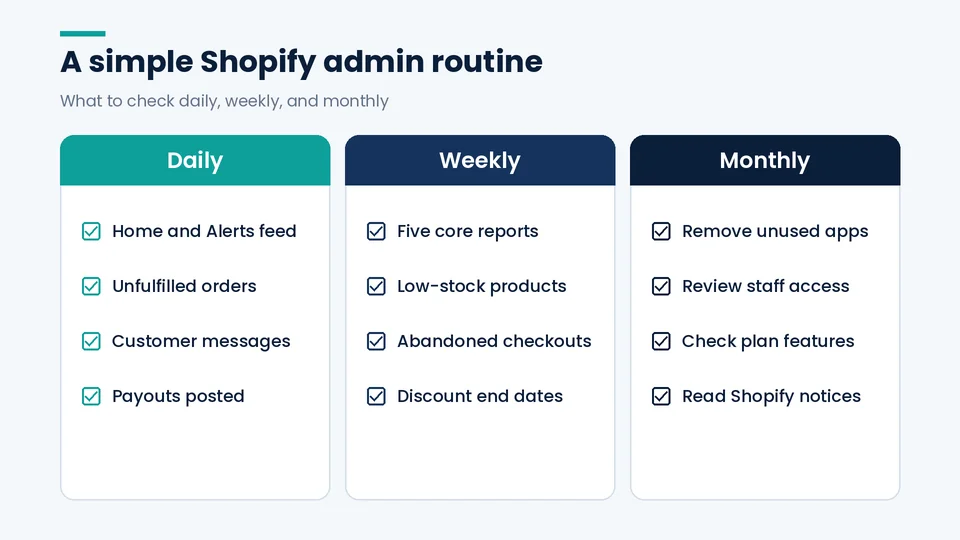
A steady routine prevents most store problems. Here is the one we suggest to clients after launch:
Daily (15 to 30 minutes): check Home and the Alerts feed, process unfulfilled orders, answer customer messages, and confirm yesterday’s payouts posted.
Weekly (about an hour): review the five core reports, check low-stock products, look at abandoned checkouts, and confirm active discounts still have the right end dates.
Monthly: review apps and remove any you no longer use, check staff access, and read Shopify’s changelog and Help Center notices for features that affect your plan.
When a store outgrows this routine, it usually needs better integrations, a cleaner catalog structure, or a different plan, not more hours in the admin. If you are still deciding whether the platform suits you at all, our post on whether Shopify is right for your business walks through the trade-offs.
Frequently asked questions about the Shopify admin
How do I log in to the Shopify admin?
What is the fastest way to find a page in the Shopify admin?
Can staff use the admin without seeing sensitive data?
Does the Shopify mobile app have every admin feature?
Why does my Shopify admin look different from screenshots?
How long does it take to learn the Shopify admin?
Getting help with your Shopify setup
The Shopify admin rewards a little structure: learn the three sidebar layers, keep Settings reviewed, give every staff member the right role, and use search to move fast. With those habits, the dashboard stops feeling crowded and becomes a quick daily checklist.
If you want a second pair of eyes on a new store, a messy catalog, or settings inherited from a previous developer, PROSeCommerce can review your admin setup and fix what is slowing your team down. See our Shopify development services to start that conversation.