

What a Shopify online store includes
A Shopify online store is a hosted website built on Shopify’s commerce platform, with your products, checkout, payments, and order management in one account. Shopify runs the servers, security updates, and checkout, and you choose a theme, add products, connect payments and shipping, and point your own domain at the store.
That bundle is why many US merchants start on Shopify: you can launch without managing hosting or a shopping cart plugin. It also means a handful of setup decisions shape everything that follows, from fees to search visibility. This step-by-step guide covers those decisions as of October 2026, using Shopify’s own getting set up to start selling documentation and the launch checklist PROSeCommerce, part of PROS Global in San Diego, uses for client stores.
If you are still deciding whether Shopify is the right platform at all, read our guide on whether Shopify is right for your business first, then come back to build.
Step 1: Sign up and start the trial
Creating the store takes a few minutes. Go to shopify.com, click Start for free, and sign up with an email and password or with a Google, Apple, or Facebook account. Shopify then asks optional questions about your business so it can tailor setup suggestions, and you can skip them.
As of October 2026, Shopify’s free trial page advertises a free start with no credit card required, followed by an introductory offer of $1 per month before a regular plan applies. Offers change, so read the current terms on that page before you plan your launch date. You can add billing details during signup or later; the store must have a paid plan before it can stay open after the trial.
Step 2: Pick a plan that matches your first year
Choose the plan for the store you expect to run over the next 12 months, not just launch week. The main differences are staff accounts, reporting, and card rates.
As of October 2026, from Shopify’s pricing page for US stores:
| Plan | Yearly billing | Monthly billing | Online card rate (Shopify Payments) | Staff accounts |
|---|---|---|---|---|
| Basic | $29/month | $39/month | 2.9% + 30¢ | Owner only |
| Grow | $79/month | $105/month | 2.7% + 30¢ | 5 |
| Advanced | $299/month | $399/month | 2.5% + 30¢ | 15 |
Basic suits a solo owner testing a catalog. Grow is usually the first upgrade, because it adds staff accounts and lower card rates. Shopify Plus starts much higher and suits large brands. Our Shopify plans guide compares all four in more depth, including fees for third-party payment gateways.
Step 3: Add your business details and store settings
Before you design anything, fill in the Settings pages that affect every order. In the Shopify admin, open Settings and complete:
- Store details. Legal business name, address, contact email, and the currency you sell in.
- Users and permissions. Add staff with their own logins and roles instead of sharing the owner account.
- Policies. Refund, privacy, terms of service, and shipping policies. Shopify offers templates, but edit them to match how you actually operate.
- Notifications. Brand the order confirmation and shipping emails customers will see first.
Getting these right early prevents confusing emails, missing policy pages at checkout, and tax or payout problems later. If the admin feels unfamiliar, our Shopify admin dashboard guide explains where each section lives.
Step 4: Add products and collections
Products are the core of the store, so set them up with search and shoppers in mind from day one. For each product, add a clear title, a useful description, high-quality images with descriptive alt text, price, inventory, weight, and variants such as size or color.
A few habits pay off:
- Write descriptions for buyers. Answer what it is, who it is for, what it is made of, and how it ships. Avoid copying manufacturer text that appears on hundreds of other sites.
- Use consistent product types and tags. They power automated collections and filters.
- Fill in the search engine listing. Each product has an SEO title, meta description, and URL handle. Keep handles short and readable.
- Group products into collections. Collections become category pages in your navigation and are often the pages that rank for broader searches.
For larger catalogs, import products by CSV rather than one at a time. Shopify’s products documentation explains the CSV format and bulk editing.
Step 5: Choose and customize a theme
Your theme controls how the store looks and how fast it loads. The Shopify Theme Store offers free and paid themes, and every theme can be previewed with your own products before you publish it.
When you compare themes, check:
- Speed and simplicity. A lighter theme with fewer animations usually loads faster on phones, where most shoppers browse.
- The sections you need. Product pages, collection filters, and the homepage blocks you plan to use should be built in, so you need fewer apps.
- Mobile layout. Preview on a real phone, not just a resized browser window.
Customize in the theme editor: logo, colors, fonts, navigation menus, homepage sections, and product page layout. Keep the homepage focused on your best collections and a clear reason to buy. Our guide on how to speed up your Shopify store covers theme and app choices that affect load time.
Step 6: Set up payments
Payments decide what you pay on every order. Shopify Payments is Shopify’s built-in processor in supported countries, including the US. It activates card payments, accelerated checkouts such as Shop Pay, and payouts to your bank without a separate merchant account. If you use a third-party gateway instead, Shopify adds a transaction fee on top of the gateway’s own charges, which varies by plan.
Open Settings, then Payments, to activate your provider and confirm payout details. Run a test order before launch so you know the flow works end to end. Our Shopify merchant account guide explains the fee differences between Shopify Payments and outside gateways in detail.
Step 7: Configure shipping and taxes
Shipping and tax settings are where many new stores lose money without noticing. In Settings, set up shipping zones and rates that reflect your real costs: flat rates, free shipping above a threshold, carrier-calculated rates on eligible plans, or local pickup and delivery.
For US sales tax, review the Taxes and duties settings and register to collect in the states where you have obligations. Shopify can calculate and collect tax at checkout, but you remain responsible for registering and filing, so confirm your obligations with a tax professional. Write down every rate and rule you set so you can audit it later.
Step 8: Connect a domain and prepare for launch
A custom domain makes the store look established and keeps your brand in search results. You can buy a domain through Shopify or connect one you already own from another registrar. Set it as the primary domain so the myshopify.com address redirects to it.
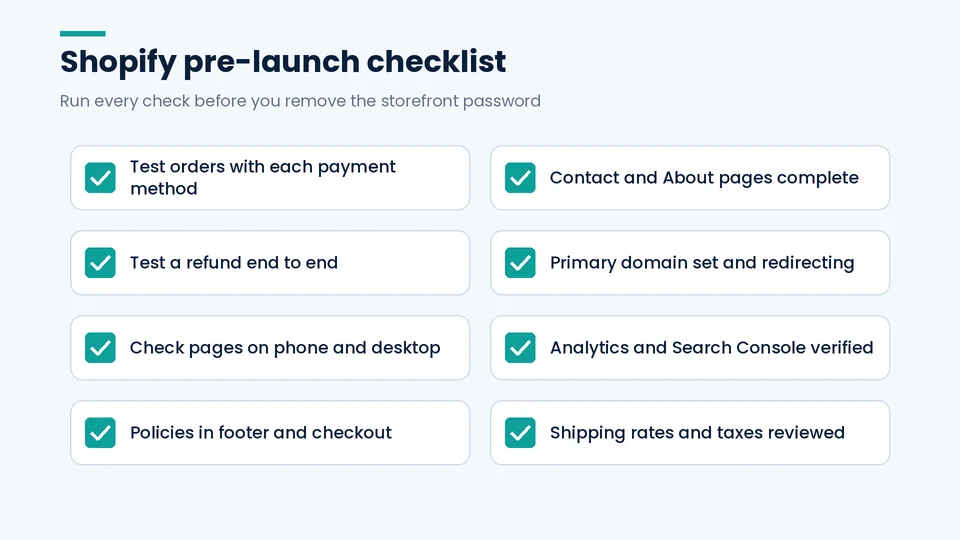
Then work through a pre-launch checklist:
- Place test orders with each payment method and a refund.
- Check every page on a phone and a desktop.
- Confirm policies appear in the footer and at checkout.
- Make sure contact details and the About page are complete.
- Add analytics and verify the store in Google Search Console.
- Remove the storefront password when everything passes.
Google’s SEO starter guide explains how search engines find and understand new sites, and our Shopify SEO checklist applies that to Shopify stores, including titles, URLs, and structured data.
Apps: add only what you need
The Shopify App Store has apps for reviews, subscriptions, email, upsells, shipping, and more. Apps are useful, but each one can add monthly fees and scripts that slow your pages. Install apps one at a time, after launch where possible, and remove any you stop using. Shopify’s apps documentation explains how to install, manage, and uninstall them.
A practical starting stack for many stores is small: email marketing, product reviews, and one shipping or fulfillment tool. Add more only when there is a clear business need.
After launch: the first 30 days
The first month is for learning, not redesigning. Watch which products get views but few sales, where shoppers abandon checkout, and which traffic sources bring buyers. Fix the biggest leak first.
Each week, review sales, sessions, conversion rate, and abandoned checkouts in Analytics. Answer every customer question quickly, and turn repeated questions into product page copy or FAQ content. Ask early customers for honest reviews. By day 30 you should know whether the problem is traffic, conversion, or average order value, and that tells you where to spend next.
Frequently asked questions about Shopify online stores
How much does it cost to start a Shopify online store?
How long does it take to set up a Shopify store?
Do I need a developer to build a Shopify store?
Can I use my own domain with a Shopify online store?
Is Shopify Payments required?
What should I do first after launching?
Ready to launch your store
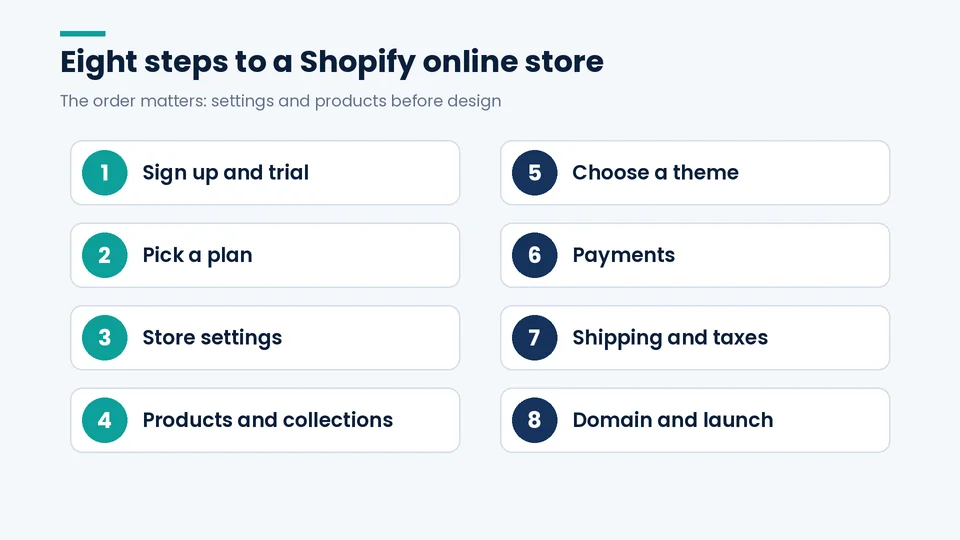
Setting up a Shopify online store comes down to eight steps done in the right order: sign up, choose a plan, complete settings, add products, pick a theme, set up payments, configure shipping and taxes, and connect your domain before launch. Take care with settings and products, and the rest of the store is much easier to grow.
If you want help with a custom theme, a catalog import, or moving an existing store to Shopify, PROSeCommerce can handle the build while you focus on selling. Visit our Shopify development services page to get started.